Bring notes in from other apps
Add notes you wrote elsewhere to a course from Markdown or text files, check what each becomes, and undo it if it is not right.
If you have notes from another app, you can bring them into a course. Each file becomes a session of that course, and its sections become notes and questions. Soundings shows you what it will make before it makes anything.
To bring back a whole logbook, restore a backup instead: see Back up and restore your logbook. To plan a course's sessions from its outline, see Plan sessions from a syllabus.
Before you begin
- Start the course you want the notes in. See Start your first session.
- Have your notes as files that Soundings reads:
| File | Its name ends in |
|---|---|
| A Markdown file, such as a note from Obsidian | .md or .markdown |
| A text file, such as notes you downloaded from a course platform | .txt |
| A zip of Markdown or text files, such as a folder of notes | .zip |
Each file can hold up to 4 MB of text. From one zip, Soundings reads up to 500 files.
How Soundings reads a file
| In the file | What it becomes |
|---|---|
| The file | One session. Its title is the title: in the file's front matter, or else its first # heading, or else the file's name. Its date is the date: in the front matter, such as date: 2026-11-03, or else today. |
| A heading and the text under it | One note, which starts with the heading's words |
A paragraph that starts with q: | An open question |
A line that starts with a video time, such as 05:23, [1:02:03] or (4:10) - | A new entry. The time stays at the start of its words. |
tags: or topics: in the front matter | Topics of the course, on every entry from that file |
A link such as [[Routing]] | Its words, without the link |
| A picture | Not brought in. The entry says where it was, such as (picture: diagram.png, not brought in). |
What comes in has no moments: a time in the text stays as text, and does not jump to a video. Nothing comes in as an answer, so nothing becomes a recall card until you answer the questions.
Bring the notes in
Select Courses, then the course.
At the bottom of the course page, after Bring in:, select Notes (Markdown or text).
You can also press Ctrl+K on the course page and choose Bring notes into this course (Markdown or text).
Choose the file.
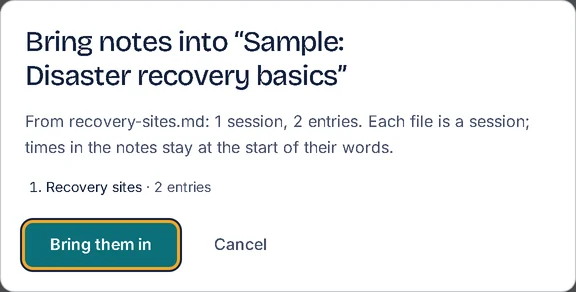
A window opens, such as Bring notes into “Networks 101”. It says how many sessions, entries and questions the file makes, and lists each session with its number of entries, and its date when the file gives one.
Check the list. If it is not what you expected, select Cancel, change the file, and start again.
Select Bring them in.
The new sessions come after the course's existing sessions, with the next day numbers. Soundings says, for example, Brought in 3 sessions and 24 entries from week-notes.zip.
If Soundings cannot use the file, it says why:
| Soundings says, for example | What to do |
|---|---|
| notes.txt is too large to bring in (over 4 MB of text). | Split the notes into smaller files, and bring them in one by one or together in a zip. |
| notes.md has no notes Soundings could find. | Check that the file has text in it. |
| Soundings could not read notes.zip. It takes Markdown or text files, or a zip of them. | Save the notes as Markdown or text, and try again. |
Bring back notes exported from Soundings
A Markdown export from Soundings reads back too, as notes and open questions. Moments and recall history do not come back this way, and answers come back as notes, not linked to their questions. To bring back everything as it was, restore a backup.
Undo an import
Right after you bring the notes in, select Undo in the notice.
The entries it brought in go. So do the sessions and topics it made, with two exceptions: a session you have written in since stays, and so does a topic that one of your other entries uses. Topics the course had before stay too. Soundings says The import is undone. When a session stays, it says so, for example The import is undone, except 1 session you have written in since: it stays.
Undo is there until you go to another page.
Try it: Open Courses, then a course
Related articles
- Export to Markdown, CSV, Word, Anki or print: Save your notes as files for other apps: Markdown for note apps, a spreadsheet of questions, a Word document, Anki cards, or a printout.
- Plan sessions from a syllabus: Paste a course outline to make its sessions ahead of time, each with a date and its topics, and undo the plan if it is not right.
- Organise with topics: Read a topic across sessions, rename, merge and colour topics, see how deep you know each one, and sort entries without a topic.
- Back up and restore your logbook: Save a copy of everything you have written, and bring it back in this browser or another one.