Back up and restore your logbook
Save a copy of everything you have written, and bring it back in this browser or another one.
Your logbook lives in this browser, on this device. It is not stored online, so a backup file is the only copy you control outside this browser. Make one regularly, and always before you clear your browser's data, reinstall your browser or change computer.
What a backup holds
A backup is one file with a name such as soundings-backup-2026-11-03.json. It holds everything you wrote: courses, sessions, notes, questions, answers, your recall history, pictures you pasted, and your settings.
It does not hold the videos and PDFs you studied. They stay where they are on your device.
Make a backup
Open Settings. It is at the bottom of the sidebar; when the sidebar is folded to icons, it is the icon with three sliders. In the Pages layout and on a phone, it is at the top of the screen.
In the list, select Back up. It is the first item, and opens first.
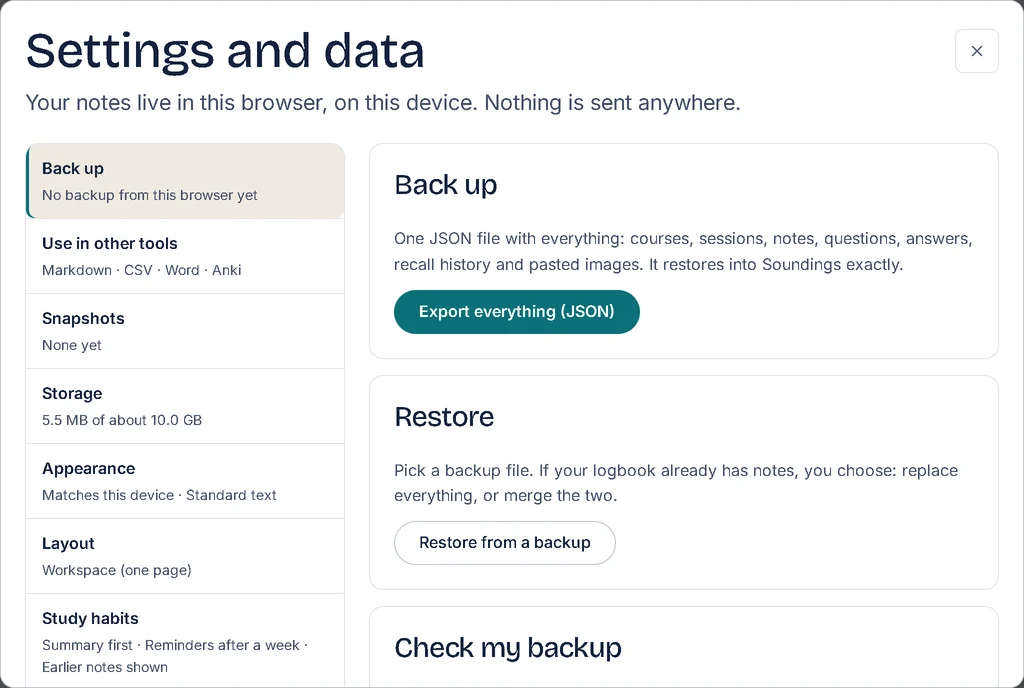
Select Export everything (JSON).
Your browser saves the file, usually in your Downloads folder. Soundings confirms it with the file's name, for example Exported everything to soundings-backup-2026-11-03.json.
Copy the file somewhere safe: a USB drive, a cloud drive, or an email to yourself.
A backup file isn't locked: anyone who gets it can read your notes. To lock it, see the next section.
Make a locked backup
A locked backup opens only with a passphrase you choose. Use it for a file you keep in a cloud drive, send by email, or carry on a USB drive.
In Settings, select Back up, then Export everything, locked.
Type a passphrase of at least 10 characters, then type it again. A few words you will remember work well.
Select Lock and export.
Soundings saves a file whose name ends in -locked.json.
To restore it, select Restore from a backup as for any backup. Soundings asks Unlock and the file's name: type the passphrase. A wrong passphrase changes nothing.
Check that a backup would work
In Settings, select Back up, then go to Check my backup.
Select Check my logbook.
Soundings reads your logbook the way a restore reads a backup file. When everything is in order, it says that all your records check out and a backup made now restores. Nothing is changed.
Restore a backup
Open Settings, then select Back up.
Under Restore, select Restore from a backup, then choose your backup file.
When your logbook is empty, the backup is restored straight away. When your logbook already has notes, Soundings asks how to restore it.
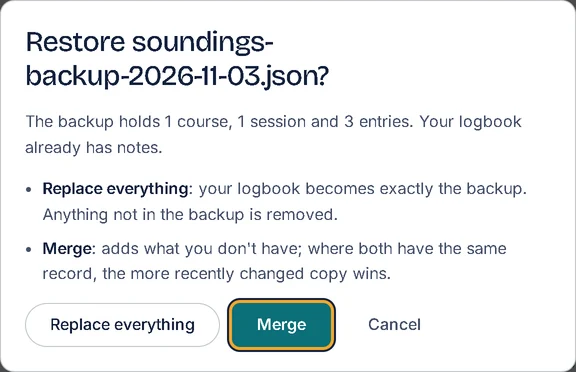
Choose one:
- Merge adds what your logbook does not have. Where both have the same record, the copy changed most recently is kept. Choose this to bring two browsers together.
- Replace everything makes your logbook exactly the backup. Anything that is not in the backup is removed. On a device that syncs, it also disconnects this device; when it joins again, what your other devices hold comes back, so it ends up like a merge. See Keep your logbook on every device.
Soundings then says what it restored, and from which file, for example Merged: 12 added, 3 updated, 40 already up to date.
Move to a new computer or browser
On the old computer, make a backup, as in Make a backup above, and copy the file to the new computer.
On the new computer, open Soundings and restore the file, as in Restore a backup above.
Your videos and PDFs are not in the backup. Open each one again from its session when you next study it.
Try it: Open Back up in Settings
Related articles
- Start your first session: Set up a course, open what you are studying, and write your first note, question and answer.
- Keyboard shortcuts: Every key that works in Soundings, so you can write and move around without the mouse.