Start your first session
Set up a course, open what you are studying, and write your first note, question and answer.
Soundings keeps each note, question and answer tied to the moment it came up: a time in a video, a page in a PDF, or the clock of a live class. This article takes you from an empty logbook to your first question with its answer. It takes about 5 minutes.
Before you begin
- Have something to study at hand: a video file, a PDF, a YouTube or Vimeo link, or a live class about to start.
- Use Soundings on a laptop or desktop for this first session. It also works on a phone.
Start a course
A course holds everything for one subject: its sessions, notes, questions and topics.
Open Soundings at
soundings.modernnicheworld.com.The front page opens. It follows your device: sunny by day, and the night sea when your device is set to dark. Below the buttons, a four-panel story shows how Soundings works. At the top right, Open your logbook takes you into your logbook.
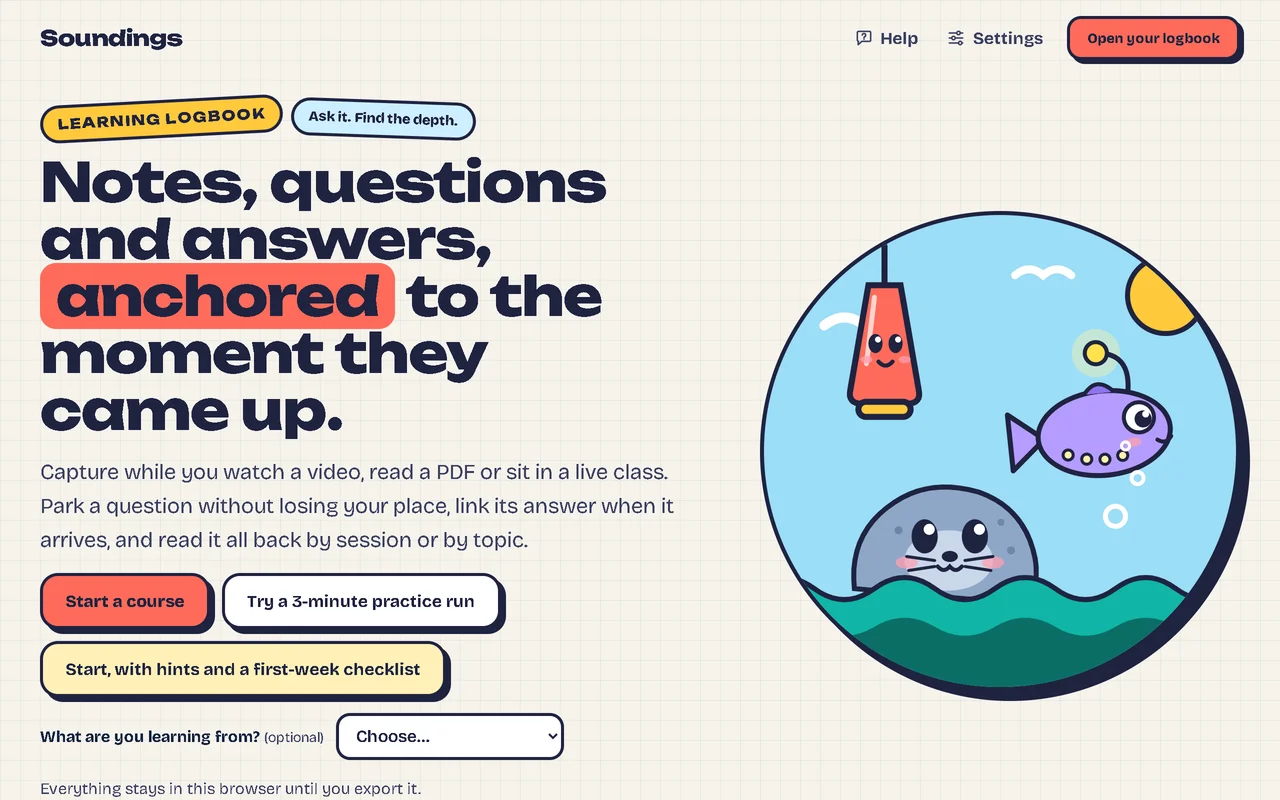
Select Start a course.
If you already have a course, select Open your logbook, then New course at the top of Today instead.
In Title, type the name of the course, for example
Disaster recovery.Optional: in Where you take it, type where you take the course, for example
Udemyoran evening class.Select Start the course.
The course page opens, on its Sessions tab.
Start a session
A session is one sitting: a lecture, a chapter or a class. Each one has a day number (Day 1, Day 2) and a date.
On the course page, select New session.
Check the Title and the Date, and change them if you want. Soundings suggests
Day 1and today's date.Under What are you studying?, choose A video, a PDF or a link, or A live class.
Select Start the session.
The session opens. What you study goes on one side, and your notes on the other.
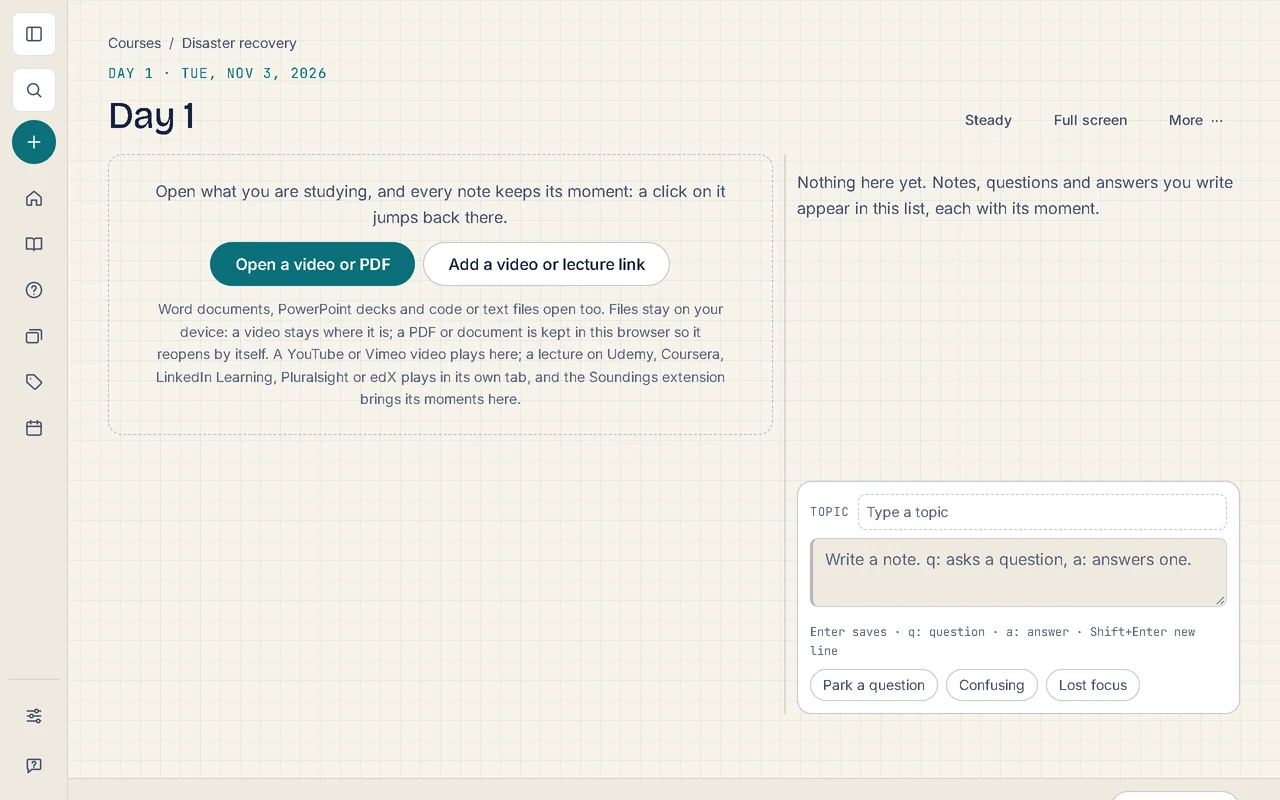
Open what you are studying
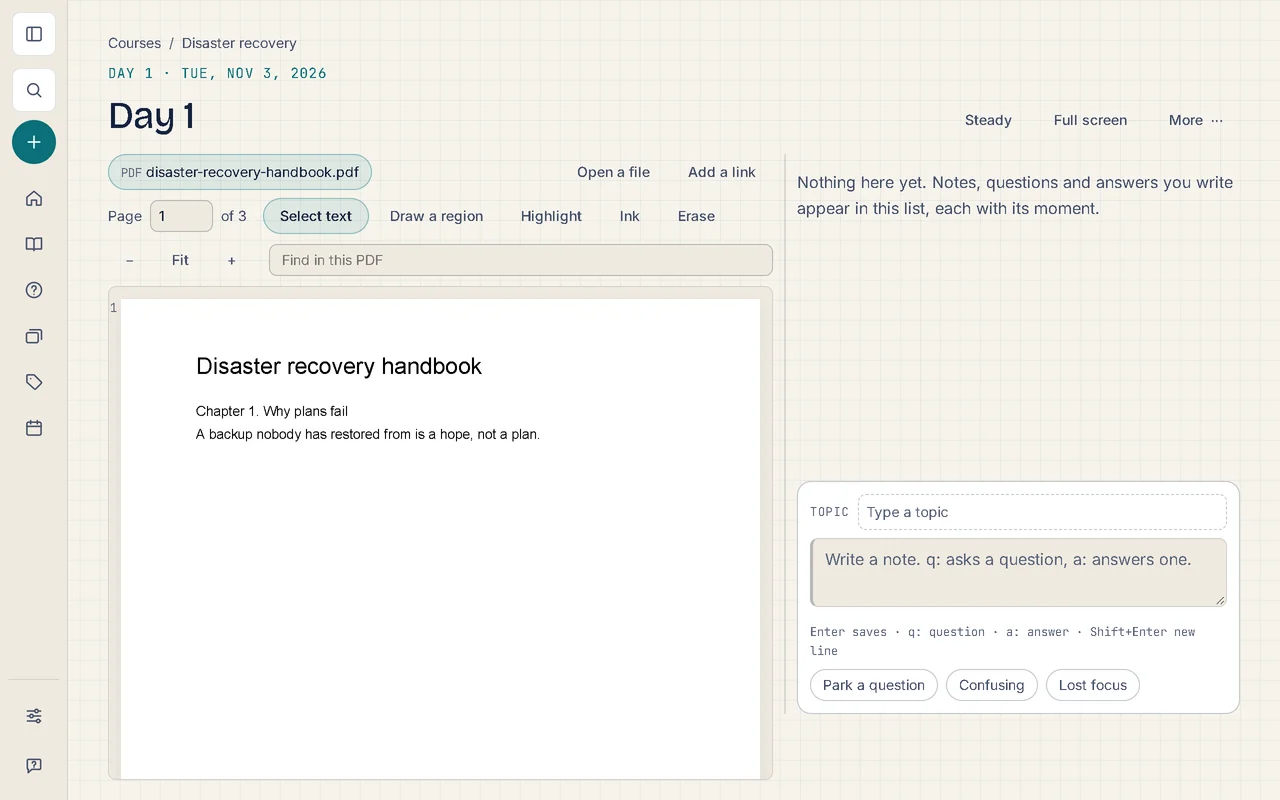
Select Open a video or PDF, then choose the file on your device.
For a YouTube or Vimeo video, select Add a YouTube or Vimeo link instead, and paste the video's address. The video or PDF opens in the session.
Write a note, a question and an answer
You write everything in the capture box, under your notes. Each entry keeps its moment: the time in the video or the page of the PDF.
Select the capture box, type a note, and press Enter.
For example:
A backup nobody has restored from is a hope, not a plan.The note joins your notes, with its moment, such as p. 1.To ask a question, start the line with
q:, then press Enter.For example:
q: How often should restores be tested?The question is saved as open. Keep studying: you can answer it later.When you find the answer, start the line with
a:, then press Enter.For example:
a: On a schedule that is written down, and after every big change.Before you press Enter, the line under the capture box shows which question you are answering, after Answering:.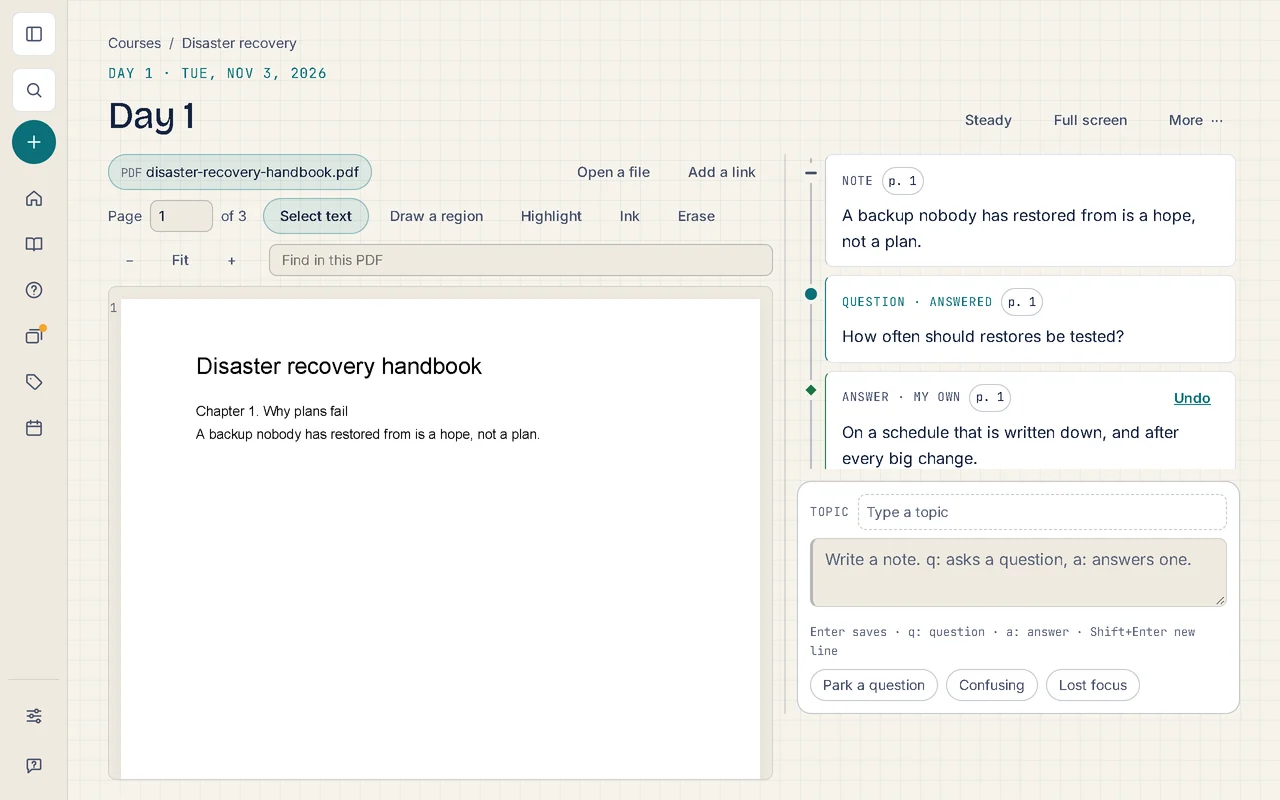
What you have now
- A course with its first session.
- A note, a question and its answer, each tied to its moment. Select an entry's moment to go back to that page or time.
- A recall card, made for you from the answered question. It comes back in Review to help you remember the answer.
Try it: Open Courses, where you start a course
Related articles
- Back up and restore your logbook: Save a copy of everything you have written, and bring it back in this browser or another one.
- Keyboard shortcuts: Every key that works in Soundings, so you can write and move around without the mouse.