Plan sessions from a syllabus
Paste a course outline to make its sessions ahead of time, each with a date and its topics, and undo the plan if it is not right.
When a course comes with a syllabus or an outline, Soundings can turn it into sessions before you start. Each session gets a date, and the topics listed under it in the outline. When you open a session, its topics are already chosen, so everything you write is filed under them.
Before you begin
- Start the course first. See Start your first session.
- Have the outline at hand as text: copied from the course's website or a document, or saved as a Markdown or text file.
How Soundings reads the outline
Each line that starts furthest to the left becomes a session. Each indented line under it becomes one of that session's topics. For example:
| Line in the outline | What it becomes |
|---|---|
Week 1: Why plans fail | The first session |
- RTO and RPO, indented | A topic of the first session |
- The 3-2-1 rule, indented | Another topic of the first session |
Week 2: Testing restores | The second session |
- Restore drills, indented | A topic of the second session |
When no line is indented, every line becomes a session, with no topics.
If the outline has Markdown headings (lines that start with #), the headings of the highest level become the sessions. Lower headings and list items under them become topics. Other text, such as a paragraph about the week, is left out.
Soundings also tidies each line:
- A list mark or a number at the start of a line, such as
-,*,1.ora), is taken off. - A colon or a full stop at the end of a line is taken off.
- A topic listed twice under the same session counts once.
- An outline gives at most 200 sessions.
Plan the sessions
Select Courses, then the course. At the bottom of the course page, after Bring in:, select A syllabus.
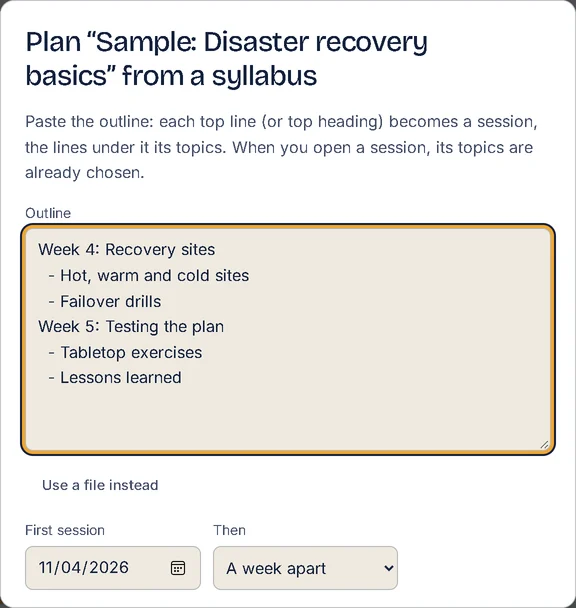
You can also press Ctrl+K on the course page and choose Plan this course from a syllabus. A window opens, such as Plan “Networks 101” from a syllabus.
Paste the outline into Outline.
To use a file instead, select Use a file instead, then choose a Markdown or text file (
.mdor.txt). Its text goes into the box.In First session, choose the date of the first session. It starts as today.
In Then, choose how far apart the sessions are: A week apart, A day apart or All on the start date.
Check the list under the box.
It says what Soundings found, such as 6 sessions and 14 topics:, then lists each session with its date and its topics. The list changes as you edit the outline, so fix the outline until the list is right.
Select Plan the sessions.
Soundings says, for example, Planned 6 sessions. Open one on its day: its topics are already chosen for what you write.
What the plan makes
- Sessions: they come after the course's existing sessions, with the next day numbers and the titles from the outline. On the Sessions tab, each one shows Planned until its day, as long as nothing is written in it.
- Topics: when the course already has a topic of the same name, Soundings uses it. Otherwise, it makes a new topic.
- Topics chosen for you: when you open a planned session, its topics are already chosen above the capture box. To take one away, select the × beside its name. See Write notes, questions and answers.
- Dates: the planned sessions show on their days in the calendar. See See a day or a month at a glance.
When the day of a planned session has passed and you have not opened it, Catch up on Today suggests it. It can also move the rest of the plan to start today. See See what to do next with Catch up.
To change the date of one planned session, open it, select More, then Rename. See Manage courses and sessions.
Undo the plan
Right after you plan, select Undo in the notice.
The planned sessions go, and so do the topics the plan made. Topics the course had before stay. Soundings says The plan is undone.
Undo is there until you go to another page: the notice closes when you leave the course page. Later, delete the planned sessions you do not want one by one: see Manage courses and sessions.
Try it: Open Courses, then a course
Related articles
- Manage courses and sessions: Rename, colour, file or delete a course, start, rename and delete its sessions, and find your way around a course's page.
- Organise with topics: Read a topic across sessions, rename, merge and colour topics, see how deep you know each one, and sort entries without a topic.
- See what to do next with Catch up: Use the Catch up card on Today to see the few things most worth doing now, take the next step, or hide the card for the day.
- Prepare for an exam: Set your exam date so every card gets one more look first, add the exam's objectives, and see what is covered and what is weak.