Prepare for an exam
Set your exam date so every card gets one more look first, add the exam's objectives, and see what is covered and what is weak.
When a course leads to an exam, give Soundings the exam's date. Your recall cards and look-backs then come before it. You can also add the exam's objectives, and see which ones your notes cover.
Set the exam date
Select Courses, then the course.
At the top of the course page, select Exam date.
If the course has a date already, the button says Change the exam date.
In Exam date, choose the day of the exam.
Select Save.
Under the course's name, the page shows the exam's date and how many days are left.
Cards that were going to come back after the day before the exam are brought in at once. Soundings says how many, such as 12 cards come back the day before the exam instead.
What the exam date changes
- Recall cards: a card that would come back after the day before the exam comes back on that day instead. So every card gets one more look before the exam. This goes on for every grade you give until the exam.
- Look-backs: a look-back that would fall on or after the exam day comes the day before the exam instead. See Look back at a session.
- Catch up: from 14 days before the exam, the Catch up card on Today suggests what to do for it. See See what to do next with Catch up.
- The calendar shows the exam on its day.
To remove the date, select Change the exam date, then Remove the exam date. Cards already brought in stay where they are: they come back a little sooner than they would have, never later.
Name the exam version
If the exam has versions or editions, note the one you are studying for.
At the top of the course page, select Exam version.
Type the version as the exam guide names it, such as
2026 edition.Select Save.
The course page shows Exam version 2026 edition. In Review, each card of the course shows Exam version 2026 edition.
To remove the version, empty the box, then select Save.
Add the exam objectives
An exam guide often lists what the exam covers as numbered objectives. Add them to the course, and each one becomes a topic.
On the course page, select the Topics tab.
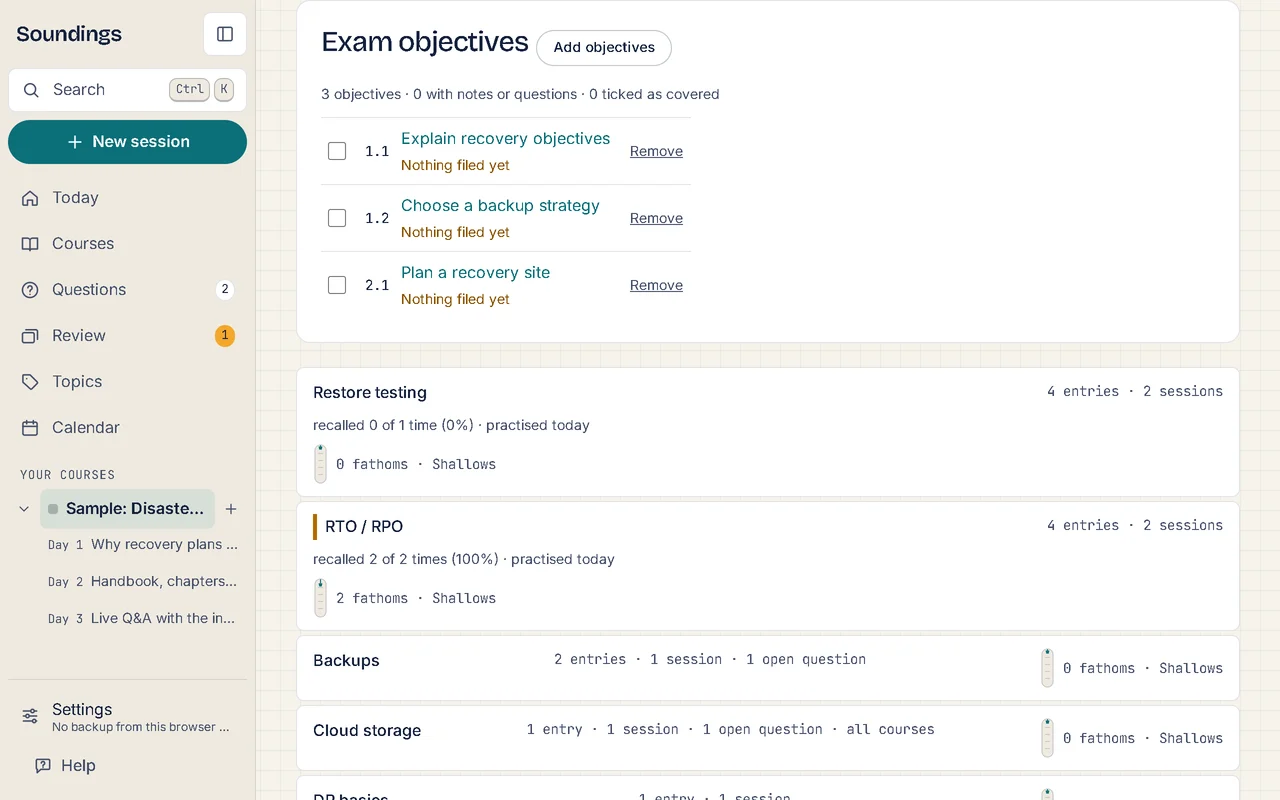
Exam objectives is at the top.
Select Add objectives.
In Objectives, paste the objectives from the guide, one a line: a code, then the words. For example:
1.1 Explain the layers of a network1.2 Compare common network protocols
Under the box, Soundings shows how many objectives it found, and the first few. A line without a code gets the next number.
Select Add 2 objectives. The button shows how many objectives it adds.
Each objective becomes a topic of the course, with its code. If the course already has a topic of the same name, Soundings uses that topic.
To file a note or a question under an objective, choose its topic above the capture box as you write. See Write notes, questions and answers.
See what is covered
Under Exam objectives, each objective shows its code, its name, and what is filed under it, such as 2 notes · 1 question · 1 card. An objective with nothing filed says Nothing filed yet. A line at the top counts the objectives, those with notes or questions, and those you ticked as covered.
When you are ready on an objective, tick Covered, at the start of its line.
It counts as covered.
Optional: select an objective's name to open its topic page, with everything filed under it.
To make an objective a plain topic again, select Remove on its line. What is filed under it stays. If you need it back, select Undo in the notice.
Work on your weak spots
A weak spot is a topic with many open questions or recent misses. Soundings already brings its cards back sooner. You find your weak spots in two places:
- in Review, under Weak spots;
- on the course's Topics tab, marked Weak spot.
Open a weak spot's topic, answer its open questions, and use recall mode on it. See Quiz yourself and use recall mode.
As the exam comes closer
For the last weeks, you can raise the course's Recall target to 95 %, so cards come back more often. See How recall cards work.
From 14 days before the exam, Catch up on Today shows a line for it, such as Exam in 5 days. It suggests one next step:
- When some objectives have nothing filed and are not ticked, it says how many, with Open the objectives.
- Otherwise, it names the course's weak spots, or says it is a good time to go over its questions, with Review this course. That opens Review with this course's cards only.
Try it: Open Courses, then a course
Related articles
- See what to do next with Catch up: Use the Catch up card on Today to see the few things most worth doing now, take the next step, or hide the card for the day.
- How recall cards work: Where recall cards come from, what they show, and how Review decides when each card comes back.
- Look back at a session: Go over a session again 1, 3, 7 and 30 days after it, see where look-backs show, and mark a session reviewed.
- Quiz yourself and use recall mode: Test yourself on your own answered questions in a quiz, or cover the answers on a topic's page and recall them.