Take notes in a live class
Start a live-class session, take notes against the class clock, mark moments on a phone, and end the class.
In a live class there is no video to tie your notes to, so the session gets a class clock instead. Every entry keeps the time since the class started, such as +12:41. This works the same on a laptop and on a phone.
Before you begin
- Start the session when the class starts. The clock starts with the session, and does not wait.
- Keep Soundings on screen during the class, so the clock and your notes stay in view.
Start a live-class session
Open the course, then select New session.
Check the Title and the Date, and change them if you want.
Under What are you studying?, choose A live class.
Select Start the session.
The session opens with the class clock, counting from
0:00. The line under it says when the class started.
Take notes during the class
Write in the capture box as in any session, and press Enter.
Each entry keeps the time on the class clock, 5 seconds before you started typing. You can move it before you save: see Write notes, questions and answers.
As things happen, use the buttons under the capture box. Park a question keeps a question to write up later. Confusing and Lost focus mark the moment.
When you write an answer with
a:, it starts as From the instructor. If the answer came from somewhere else, change it in the list beside Answering:.
On a phone
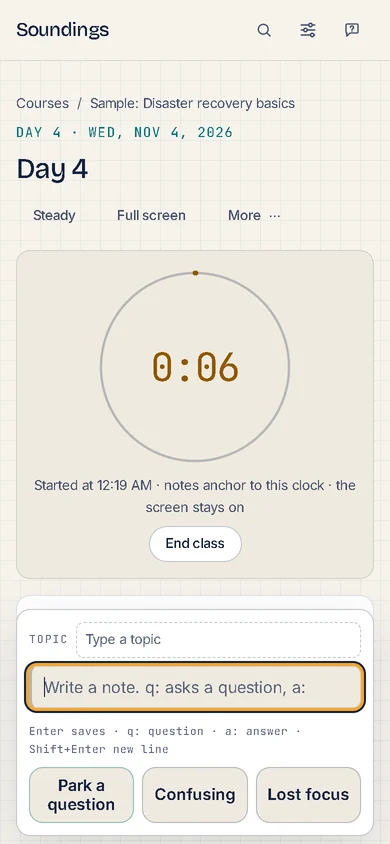
While the class runs on a phone, the session changes shape to be quicker to use:
- The clock is large, inside a ring that fills once an hour.
- Park a question, Confusing and Lost focus are 3 large buttons, so you can mark a moment without typing.
- The capture box is one line high, to leave more room for your notes.
Keep the screen on
While the class runs, Soundings asks your browser to keep the screen on, so the clock does not go dark. When the browser agrees, the line under the clock says the screen stays on.
- The screen stays on only while Soundings is on screen. When you come back to it, Soundings asks again.
- Some browsers cannot keep the screen on, and some refuse when the battery is low. The line then does not say it, and your device's own sleep setting applies.
End the class
When the class is over, select End class, under the clock.
The clock stops, and the line under it says when the class ended. The screen is no longer kept on.
You can still write in the session after the class has ended. New entries keep the time since the class started.
Try it: Open Courses, where you start a session
Related articles
- Start your first session: Set up a course, open what you are studying, and write your first note, question and answer.
- Write notes, questions and answers: Use the capture box to write notes, park questions, answer them and file entries under topics, each at its moment.
- Mark a moment: confusing, lost focus or key idea: Mark a moment that confused you or where you lost focus, go back to it later, and mark the key ideas of a session.
- Install Soundings and use it offline: Open Soundings from your apps in a window of its own, keep studying without an internet connection, and move to a new version.