Focus with Steady
Turn on Steady for a quieter screen, short pauses between stretches of video, and a quick way back when you lose your place.
Steady is Soundings' focus mode: one switch for a few aids that help you stay with what you study. It clears the screen, cuts a video into stretches with a short pause after each, and shows you the way back when you lose your place. You choose which aids it uses. It never asks anything about you.
Turn Steady on
Open a session.
At the top of the session, select Steady, or press Alt+I. The key works even while you type.
Steady turns on, and the Steady button shows as pressed.
The first time, the Steady window opens, with each aid and its switch. Choose what you want, as in the next section, then select Done.
From then on, Soundings says Steady is on. More › Choose what Steady does changes it; Alt+I turns it off.
To turn Steady off, select Steady again, or press Alt+I.
Steady stays on in every session until you turn it off. You can also turn it on or off in Settings, under Study habits, with Steady on in every session.
Choose what Steady does
Under Set it up for, the Steady window has 3 ready-made sets of aids:
| Choose | For | What it turns on |
|---|---|---|
| Watching a lecture | A video | Every aid under What Steady does, with stretches of 10 minutes |
| Reading a PDF | A PDF or document | Where you were, A quiet screen, A goal, not a clock and Hold, with no pauses |
| A live class (a quiet mark on the clock, no pause) | A live class | Short pauses, Where you were and A quiet screen |
In a session, select More, then Choose what Steady does.
The Steady window opens. It is also in Settings, under Study habits: select Choose what Steady does.
Under Set it up for, choose what you are doing.
Turn each aid on or off. The aids under What Steady does come on with Steady. The extras under Off unless you choose stay off until you turn them on.
Each change is kept at once.
Select Done.
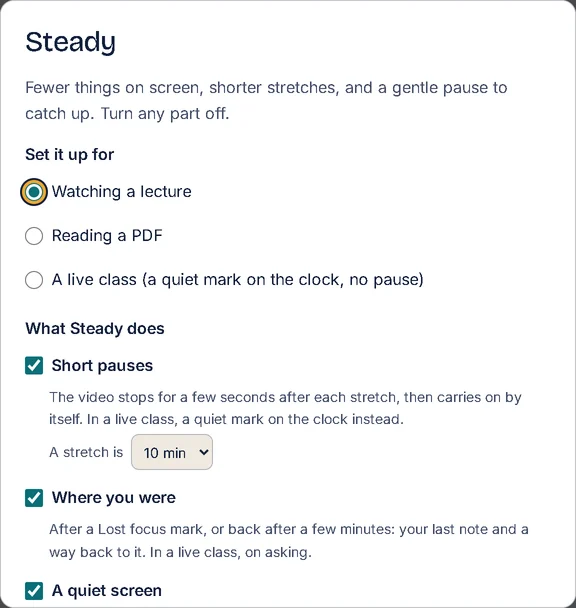
What each aid does
| Aid | What it does |
|---|---|
| Short pauses | Stops the video for 5 seconds after each stretch, then plays on. In A stretch is, choose 5, 10, 15 or 25 minutes. |
| Where you were | Shows the last thing you wrote, with a way back to it: after you mark Lost focus, or when you open a session 5 minutes or more after you last wrote in it. |
| A quiet screen | Hides the header, the tabs and the bar at the bottom of the screen. The page or video, the capture box and your notes stay. |
| A one-line recap | At each pause, offers a box for one line in your own words. Nothing is graded. |
| A goal, not a clock | Stops after a number of stretches of video, or at a page of a PDF. |
| Hold | Lets the stretch you are in run on, with no pause at its end. |
| Extra | What it does |
|---|---|
| A soft tone | Plays a short, quiet note when a pause or your goal comes. |
| A reading line on PDF pages | A band follows the pointer down the page, and the rest of the page dims. |
| Read aloud | Under a PDF, a Word document or a PowerPoint deck, reads aloud the words you select, or the page in view. |
| A warm-up | When you open a session, shows the last notes of the session before and the questions still open, before you start. |
| Background sound | Plays a soft, steady sound that your browser makes, to cover the noise around you. |
Work in stretches of video
While a video plays with Steady on, the bar under the video says how long a stretch is and how much is left, for example Steady: a short pause every 10 min and 8 min to the next pause. Only the time the video plays counts.
When a stretch ends, the video pauses, and a card says, for example, Stretch 1 done: a short pause. Then:
- To carry on, do nothing. The video plays on after 5 seconds, and the card counts down, such as Carrying on in 5 s.
- Carry on now plays the video at once.
- Rewind 15 s goes back 15 seconds, then plays. It shows when Where you were is on.
- Stay paused keeps the video paused until you play it.
Write a one-line recap
With A one-line recap on, the pause waits for you.
Type one line in your own words about the stretch you watched.
Press Enter, or select Save and carry on.
The line is saved as a note at that moment, and the video plays on.
To skip the line, press Esc or select Skip.
Hold a stretch
When a pause would come at a bad time, hold the stretch.
Under the video, select Hold, or press Alt+M.
The bar says Held: this stretch runs on. At its end there is no pause. The stretch after it ends in a pause as usual.
To cancel the hold, select Hold again.
Set a goal
With A goal, not a clock on, you can stop after a set amount of work.
Under a video, in Goal, choose how many stretches, such as stop after 3 stretches.
The bar counts down, such as 2 stretches to your goal.
When you reach your goal, the video pauses, and the card says, for example, Your goal: 3 stretches, done. Select Stop here, or Carry on to keep watching.
Under a PDF, type a page number in Goal: stop me at page. When you reach that page, a card says, for example, Page 12: the goal you set. Select Close.
A goal lasts while you are in the session. It is not kept for next time.
Use the extras
Turn each extra on in the Steady window, under Off unless you choose.
- Background sound: choose a sound in Sound: Pink (soft), White (bright) or Brown (deep). In Level, choose from 1 (quietest) to 5 (loudest). The sound plays while you are in a session, and stops when you leave it. To silence it for a while, select Mute sound at the top of the session; select it again to hear the sound.
- Read aloud: under the PDF or document, select Read aloud. Select Stop reading to stop. If your browser cannot read aloud, it says This browser cannot read aloud.
- A warm-up: when you open a session, a card such as Warm-up: Day 2 shows Your last notes and the questions Still open. Select Start to begin.
When you keep losing focus
- With Where you were on, marking Lost focus on a video or a PDF shows Where you were at once, with a way back to that moment, such as Back to 12:41. See Mark a moment: confusing, lost focus or key idea.
- With Short pauses on, if you mark Lost focus 3 times within 5 minutes, Soundings offers shorter stretches, for example Shorter stretches from now: 5 min instead of 10? Select Yes, 5 min to take them. If you do nothing, nothing changes.
The offer comes at most once each time you open a session, and never in a live class.
Keep Steady for one course
In the Steady window, turn on Keep Steady on or off for each course on its own.
In a session of each course, turn Steady on or off with the Steady button.
Each course keeps its own choice. In a course where you have not turned it on, Steady is off.
The aids you choose are the same in every course. In Settings, under Study habits, Steady then says Kept for each course on its own: turn it on in a session of that course.
Use Steady in a live class
A live class does not wait, so Steady works differently there. For the class itself, see Take notes in a live class.
- With Short pauses on, the class does not pause. Instead, each time a stretch ends, the time on the class clock is highlighted for 15 seconds, with no sound. The line under the clock says, for example, a quiet mark every 10 min.
- With Where you were on, select Where was I? under the clock to see the last thing you wrote in the class.
Under Set it up for, A live class (a quiet mark on the clock, no pause) turns on the aids that suit a class.
Go back to the standard settings
In the Steady window, or in Settings under Study habits, select Back to standard.
Steady turns off in every course, and its aids go back to how they first were: Watching a lecture, with no extras.
Breaks without Steady
When Steady is off, the bar under a video has simpler breaks of its own.
Under the video, select Pauses for a break every 15 minutes, or choose a time in Break every.
At each break, the video pauses and asks you to recall the main points. Select Write a recap to write them as a note or a question, or Carry on watching.
To hide this bar, open Settings, select Features, and turn off Pauses under a video.
Try it: Open Courses, then a session
Related articles
- Mark a moment: confusing, lost focus or key idea: Mark a moment that confused you or where you lost focus, go back to it later, and mark the key ideas of a session.
- Make room for the page: Give the page or video more of the screen, or your notes, with the divider, set widths, full screen and a folded sidebar.
- Take notes in a live class: Start a live-class session, take notes against the class clock, mark moments on a phone, and end the class.
- Turn features on and off: Hide the extras you do not use in Settings, turn them all off at once, and choose how much Soundings guides you with hints.