Review your cards
Recall your cards in Review a batch at a time, grade each one, and go back to the moment a card came from.
Review brings back the recall cards that are due. For each card, you read the question, recall the answer, show it, and grade how well you remembered it. You take the cards in batches, so you never face the whole list at once.
Before you begin
- You need at least one recall card. Answer a question in a session, and its card is ready in Review. See How recall cards work.
Open Review
Select Review, in the sidebar or at the top of the screen. On a phone, it is a tab at the bottom.
You can also press G then R when you are not typing. A number beside Review shows how many cards are due.
On Today, the row that says how many cards are back for recall, such as 12 cards back for recall, opens Review too.
Start a batch
Before the first card, Review shows how many cards are due and how many this batch takes. A batch is 20 cards, or every card due when there are fewer.
Read what is due.
For example: 35 cards are due. This sitting takes 20; the rest wait for the next.
Select Start with 20, or press Space.
When the batch takes every card due, the button says Start. The first card shows its question.
Recall and grade a card
Read the question, and recall the answer. Say it out loud, or think it through.
Select Show the answer, or press Space.
The answer shows, with the grade buttons under it.
Choose how well you remembered it: Again, Hard, Good or Easy. You can also press 1, 2, 3 or 4.
Each button shows when the card comes back if you choose it, such as
10mor3d. The next card shows.
After each grade, a short line under the title confirms it: Sounding confirmed. when you remembered, or Not clear yet. It will come round again. after Again.
A card you grade Again comes back once more before the batch ends, so you try it again while it is fresh. Soundings says Not clear yet. It comes back before this batch ends.
Type your answer first
To write the answer out before you see it, turn on Type my answer before it shows in Settings and data, Study habits. A box shows under each question.
Type your answer in your own words.
Select Show the answer, or press Ctrl+Enter.
What you typed shows above the real answer.
Grade it yourself, as usual.
When a card keeps slipping
A card you have forgotten 8 times or more says so under its answer, with Edit card. Rewriting it in your own words, or splitting it into two smaller questions, often helps. Nothing is suspended for you.
How your recall is going
Under the cards, How your recall is going shows:
- how many of the reviews of cards you had already learned you remembered over the last 30 days, beside your target, once there are 20 such reviews
- on how many of the last 30 days you reviewed
- about how long a card takes you
- how many cards come back today, this week and in the next 30 days
It never shows a score or a streak.
Take a grade back
Pressed the wrong key? Under the title, Undo names the grade you gave last, such as Undo “Easy”.
Select Undo, or press U.
The card comes back with its answer showing, as it was before you graded it.
Grade it again.
Only the last grade can be taken back, until you grade the next card or leave Review.
To learn what each grade means, see How recall cards work.
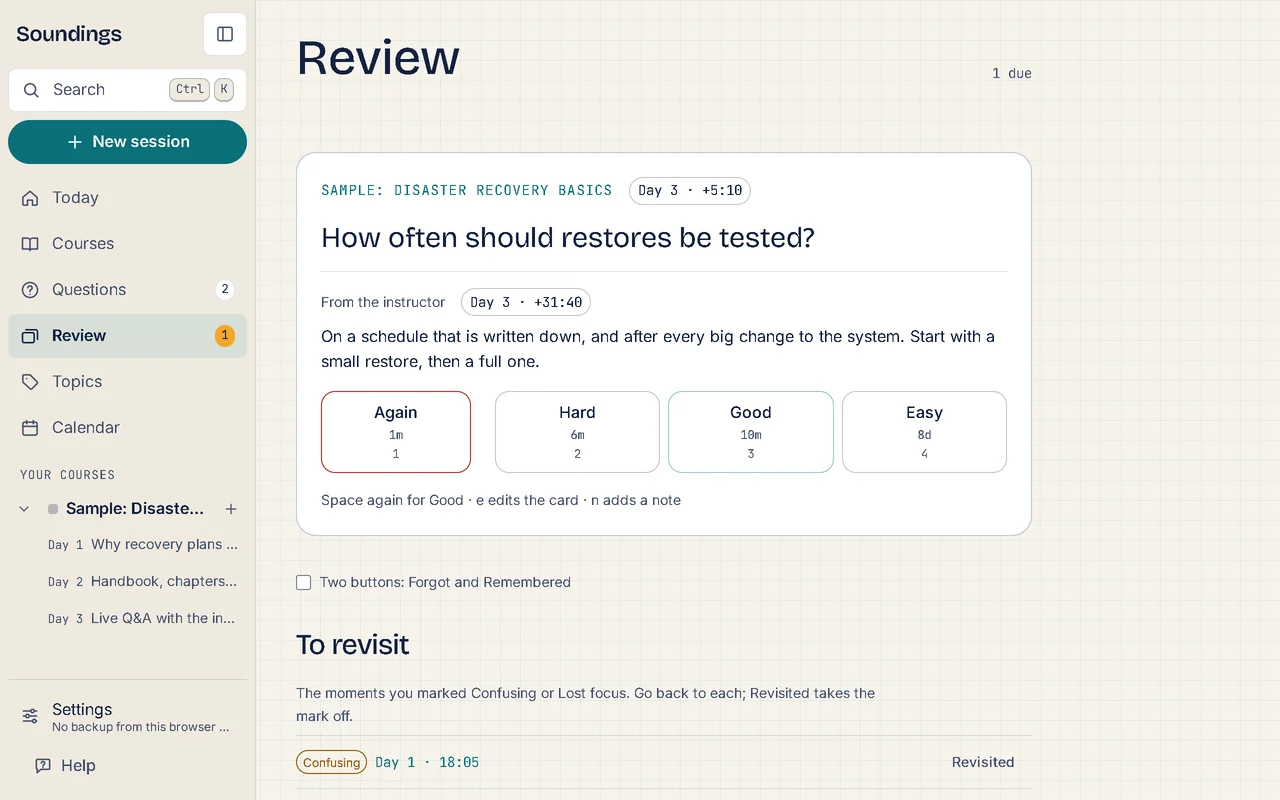
Use two buttons instead of four
If four grades feel like too many, use two: Forgot and Remembered.
In Review, below the card or on its first screen, turn on Two buttons: Forgot and Remembered. It is also in Settings, under Study habits.
The grade buttons become Forgot, with the key 1, and Remembered, with the key 2. 3 and 4 also mean Remembered, and so does Space after the answer.
Forgot sets the same schedule as Again, and Remembered the same as Good. Your choice stays until you turn it off.
Go back to where a card came from
Each card shows where its question came up, such as Day 3 · 12:41. Once you show the answer, the answer shows where you wrote it too.
Select the moment.
The session opens with the entry selected, and the video or page goes to that moment.
If you leave Review in the middle of a batch, such as to open a session, and come back within half an hour, the batch carries on where you were.
Edit a card, add a note or suspend it
After the answer shows, the buttons under the grades change the card without leaving Review:
| Select | Or press | What it does |
|---|---|---|
| Edit card | E | Opens Edit the card, with the question and the answer. Change them, then select Save the card. They change in their sessions too. |
| Add a note | N | Opens A note on this card. Type the note, then select Save the note. The note is saved in the question's session, at its moment, with its topics. |
| Suspend card | Takes the card out of Review until you bring it back. Its question and answer stay as they are. Soundings says so, with Undo. |
To bring a suspended card back, open the Questions board, find the question marked Suspended, and select Back into Review. See The Questions board.
When the batch is done
At the end of a batch, a closing card says how many cards you did, such as Batch done: 20 cards. Under it, you see how many times you gave each grade, such as Again 2 · Good 15 · Easy 3. There is no score.
- To carry on, select Another batch of 20, or press Space. The button names how many cards the next batch takes.
- To stop, select Done for now. The cards you did not get to stay due for next time.
Back after a break
If you have not graded a card for a week or more, and more than 10 cards are waiting, Review opens with Welcome back. It starts you with a batch of 10, not 20. It also says by which day a batch a day clears the rest.
Nothing is moved while you are away: the cards stay due until you grade them.
When there is nothing to review
| Review says | It means |
|---|---|
| All caught up. | No card is due now. Review says when the next one comes back. |
| Done for now. | You recalled every card that was due. |
| No cards yet. | You have no recall cards yet. Answer a question in a session, and its card joins Review. |
To look for cards that have come due since, select Check again.
Also in Review
Below the cards, Review lists what else is waiting, when there is any:
- To revisit: the moments you marked confusing or lost focus. See Mark a moment: confusing, lost focus or key idea.
- Weak spots: topics with many open questions or recent misses. Their cards come back sooner. See How recall cards work.
- Sessions to look back at: see Look back at a session.
Related articles
- How recall cards work: Where recall cards come from, what they show, and how Review decides when each card comes back.
- Quiz yourself and use recall mode: Test yourself on your own answered questions in a quiz, or cover the answers on a topic's page and recall them.
- Look back at a session: Go over a session again 1, 3, 7 and 30 days after it, see where look-backs show, and mark a session reviewed.
- Keyboard shortcuts: Every key that works in Soundings, so you can write and move around without the mouse.