The Questions board
See your questions in one place, open, answered or verified, go to the moment each came up, and copy or print the open ones.
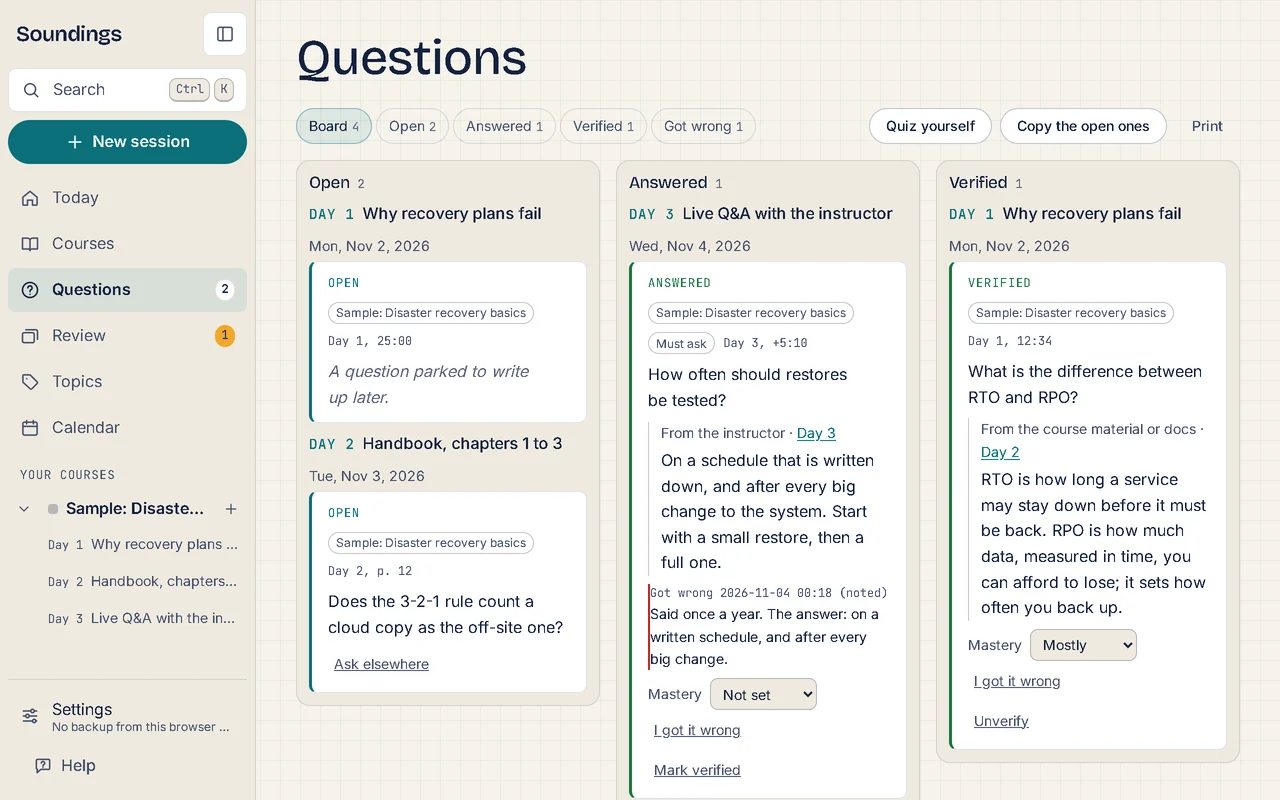
Every question you write waits on the Questions board until you answer it. The board puts your questions in three lanes, Open, Answered and Verified, so you can see at a glance what is still waiting.
Open the board
Select Questions, in the sidebar or at the top of the screen. On a phone, it is a tab at the bottom.
You can also press G then Q when you are not typing. The Questions page shows the questions of every course, and each card names its course.
Optional: to see one course, choose it under Course. To see them all again, choose Every course.
Course shows when more than one course has questions.
A course's own Questions tab, on the course page, shows the same board for that course only.
Read the board
| Lane | What it holds |
|---|---|
| Open | Questions waiting for an answer, including questions parked to write up later |
| Answered | Questions with an answer you have not checked yet |
| Verified | Questions whose answer you have checked |
On a wide screen the lanes sit side by side. On a phone, they are one under the other. Inside each lane, questions are grouped by the session they were asked in, with its day, title and date.
Each card shows:
- the question's status, and Must ask when you marked the question so;
- where it came up, such as Day 2, 12:41;
- for an answered question, its answer, where the answer came from, and the day it was written.
Show one lane at a time
Above the lanes, choose what to show. Each button shows how many questions it holds.
| Choose | To see |
|---|---|
| Board | The three lanes |
| Open, Answered or Verified | One lane, as a list |
| Got wrong | Questions you got wrong, in a quiz or with I got it wrong |
Go to a question's moment
On the card, select where the question came up, such as Day 2, 12:41.
The session opens with the question selected, and the video or page goes to that moment.
If the video is no longer open in this browser, Soundings shows its name and asks you to open it again. See Open a video file.
Answer a question from the board
On an open question's card, select Answer.
A window opens, with the question.
Type the answer, then select Save the answer.
The answer is saved in the session where the question was asked, beside it, and the question moves to the Answered lane. It has a recall card now.
To answer at the question's moment instead, with the video or page beside you, go to its moment first. See Answer an earlier question.
Bring back a suspended card
A card you suspended in Review stays out of it until you bring it back. Its question shows Suspended on the board.
On the question's card, select Back into Review.
The card is due again on its usual day.
Mark an answer verified
When you have checked an answer against a source you trust, mark it verified.
On an answered question's card, select Mark verified.
The question moves to the Verified lane.
To take it back, select Unverify.
Copy or print the open questions
Your open questions make a ready agenda for your next class, or a message to your teacher.
Select Copy the open ones.
Soundings copies them as text, grouped by session, each with its moment. It says, for example, Copied 3 open questions as text.
Paste the list where you need it: an email, a message or a document.
In the copied list, a question marked Must ask starts with [must ask]. On the Questions page, the list covers the course chosen under Course, or every course.
To print the open questions, select Print. Only the open questions are printed, under the heading "Open questions". To keep a file instead, choose to save as PDF in your browser's print window.
Questions left open for a while
A question left open for a week shows on Today and on Courses, in a short list headed Still open after a week, oldest first. On the board, its card says how long it has been open, such as Open 9 days.
To change when this happens, go to the bottom of the board, to On Today, remind me of a question still open. Choose After 3 days, After a week, After two weeks or After a month, or Never to turn the reminder off.
Practise answered questions
Answered and verified cards also help you practise:
- Mastery keeps how well you know the answer now.
- I got it wrong notes what went wrong. The question then shows under Got wrong.
- Quiz yourself, at the top of the board, tests you on the answered questions shown.
To ask someone about an open question, select Ask elsewhere on its card. See Ask a teacher or a forum.
Try it: Open the Questions page
Related articles
- Answer a question from an earlier session: Answer a question you asked in an earlier session, mark the answer verified once you have checked it, and add a better answer later.
- Ask a teacher or a forum: Write out a question for a teacher, a chat group or a course forum, with where it came up and your notes, then copy it to paste there.
- Park a question with what was on screen: Park a question during a video so it keeps the frame and the words said before it, and write it up later with that context.
- Write notes, questions and answers: Use the capture box to write notes, park questions, answer them and file entries under topics, each at its moment.