Choose a companion and see your progress
Pick a companion, and see your progress: the week's soundings, milestones, a message in a bottle, the voyage log and the captain's log.
Soundings shows your progress with a few quiet signs, never a score. This article covers the companion you can choose, the counts of your week, the milestones, and the old questions that come back to you.
What a sounding is
At sea, a sounding is a measure of how deep the water is. In Soundings, a sounding is one step of your own study:
- a question you asked;
- an answer you wrote;
- a card you recalled in Review: graded Hard, Good or Easy, or Remembered.
A card you graded Again or Forgot is practice, and is never counted against you. The sample course does not count.
Choose a companion
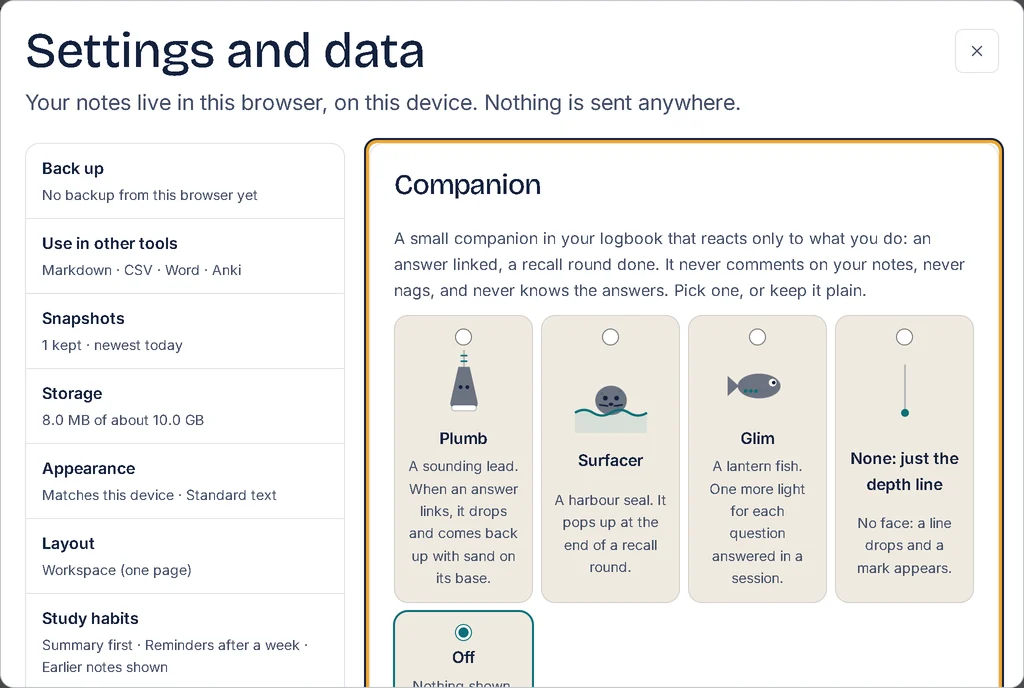
A companion is a small drawing that reacts only to what you do. It never comments on your notes, never nags you, and never knows the answers. In a session, it sits beside the title and reacts when you answer a question. In Review, it shows when a batch is done.
| Companion | What it is |
|---|---|
| Plumb | A sounding lead, the weight sailors drop to measure the depth. When an answer links, it drops and comes back up with sand on its base. |
| Surfacer | A harbour seal. It pops up at the end of a batch in Review. |
| Glim | A lantern fish. It shows one more light for each question answered in the session, up to 6. |
| None: just the depth line | No face: a line drops and a mark appears. |
Open Settings, then select Companion.
Choose a companion. To have none, choose Off.
The change applies at once. In the list of settings, the Companion row shows your choice, such as Glim · Full motion.
Optional: under Motion, choose Full, Gentle or Still.
When your device is set to reduce motion, the companion stays still, whatever you choose here.
Optional: turn Its one-line captions on or off. A caption is a short line in the companion's own voice, such as One more light.
After you save your first note in a session, Soundings asks once: Want a companion in your logbook? Choose one, or select Not now. Once you answer, it does not ask again. A companion never turns itself on.
See this week's soundings
On Today, under the card that takes you back to where you left off, a line counts this week's soundings. It starts with This week, then gives each count, such as Asked 6 · Answered 4 · Recalled 9.
- The week starts on Monday.
- The same line shows on the card at the end of a batch in Review.
- In a week with no soundings yet, the line does not show.
Keep a tide rhythm
Instead of a daily streak, you can choose how many days a week you want to study. It is off until you choose.
Open Settings, then select Study habits.
Under Tide rhythm, in Days a week, choose 3 days to Every day.
A day counts when you ask, answer or recall at least one question. The other days are slack water: they never count against you, and nothing breaks.
On Today, under this week's soundings, a line starts with Tide. It shows a mark for each day of your rhythm, filled as you keep them, such as 2 of 4 days this week · 3 weeks kept.
- The weeks kept only grow. Choosing more days later never takes a kept week back.
- To rest, select Shore leave for a week or Two weeks. The line then says Shore leave until that day. Back from shore leave ends it early. You can take shore leave as often as you need.
- To stop, choose Off. Your weeks kept are remembered if you turn it on again.
Your voyage log
The voyage log is your study in numbers, for a span you choose: days of study, sessions, time studied, notes, questions asked, answers written and recalled, topics and courses. It counts your own courses, not the sample course, and never compares you with anyone.
Open Settings, then select Study habits, then Open your voyage log. Or press Ctrl+K and type
voyage.Under Span, choose The last 4 weeks, The last 3 months, This year or Everything.
To keep it, select Save as a picture, which saves a
.pngfile, or Print. To save it as a PDF, select Print, then Save as PDF.
The picture holds only the numbers, never the words of your notes.
Make a progress picture to post
Make a progress picture draws a picture of your studying in your theme's colours, to post wherever you like. If you post it, the hashtag #SoundingsLogbook helps other learners find it.
On the voyage log, select Make a progress picture.
Under Span, choose This week, This month or A whole course.
Under What shows, tick what to include: time studied, questions asked and answered, cards recalled, the days you studied, topics studied, your companion's line. The course name shows only when you tick it.
Under Shape, choose Portrait 4:5, Square or Story 9:16.
Select Save the picture, Copy it, or on a phone Share…, which opens your phone's own share sheet.
The picture is made on your device; nothing is uploaded. It holds numbers only, never a score.
The captain's log
The captain's log asks you one question a week about your learning, such as What did you learn this week that surprised you? It is off until you choose a day.
Open Settings, then select Study habits.
Under Captain's log, in Ask on, choose a day, such as Sundays.
From that day each week, Today shows the week's question.
Write a line, then select Write it in the log. Or select Skip this week: nothing counts against you.
Your answers show on the voyage log, under Captain's log, with the week of each. To stop the questions, choose Off; your answers stay.
Milestones
A few milestones are each said once, in a short notice:
- your first question, your first answer and your first recall, such as A first: your first answer, linked to its question.
- 10, 50, 100, 250, 500 and 1000 soundings, such as 50 soundings: questions asked, answered and recalled.
- a topic that reaches a new band of depth, such as Routing: down to the Shelf, 5 fathoms.
When you come back after a week or more with no soundings, your next sounding gets a welcome: Back in the water. Good to see a new sounding. Soundings never says how long you were away.
Milestones and the welcome show only while Celebrations and motion is on, in Settings under Features.
A message in a bottle
When you save a session's summary, an old question of yours may come back with its answer, under A message in a bottle. It says when you asked it and in which course.
- To see the question where you asked it, select Where you asked it. To put it away, select Close.
- It comes at most once a day.
- It is one of your answered questions that is at least 2 weeks old, from your own courses. When you have several, the question changes from day to day.
To write a summary, see Use the Cornell layout and write summaries.
How deep you know a topic
A fathom is a sailor's measure of how deep the water is. Each topic goes 1 fathom deeper each time you recall one of its answers, and its depth puts it in a band, from Shallows to Abyss. See "How deep you know a topic" in Organise with topics.
Turn these off
Each of these has its own switch in Settings, under Features: A companion, This week’s soundings (the tide rhythm's line and the captain's question too), Celebrations and motion, A message in a bottle and Depth per topic. See Turn features on and off.
Try it: Open Companion in Settings
Related articles
- Organise with topics: Read a topic across sessions, rename, merge and colour topics, see how deep you know each one, and sort entries without a topic.
- Turn features on and off: Hide the extras you do not use in Settings, turn them all off at once, and choose how much Soundings guides you with hints.
- Review your cards: Recall your cards in Review a batch at a time, grade each one, and go back to the moment a card came from.
- Use the Cornell layout and write summaries: Show a session as a Cornell page, write a summary of each session, and recall the last session before you start the next one.