Keep a glossary of terms
Define a course's terms once, in your own words, and read a term's meaning wherever your notes mention it.
Each course has a glossary: the terms of its subject, each with what it means, in your own words. Once you define a term, Soundings underlines it wherever your notes mention it. Select it to read what it means, without leaving the page.
Define a term
Select Courses, then the course, then the Glossary tab.
Select Define a term.
Define a term opens.
In Term, type the term, such as
RPO.In What it means, in your words, write what the term means.
Optional: in Other spellings, type other ways the term is written, with commas between them, such as
recovery point objective, RPOs.Select Add to the glossary.
Soundings says, for example, “RPO” is in the glossary. Its mentions in your notes now show the definition.
Each course has its own glossary, and a term can be in it once. If the term is there already, Soundings says so: edit that one instead.
Read a definition in your notes
Soundings underlines the course's terms in your entries: in its sessions, and on its topic pages and Questions tab.
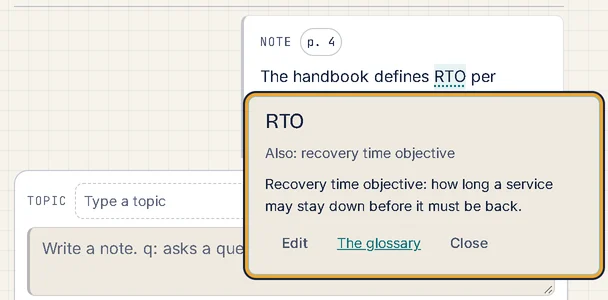
Select an underlined term.
A card opens beside it, with the term, its other spellings after Also:, and what it means.
To close the card, press Esc, select Close, or select anywhere else on the page.
On the card, Edit changes the term, and The glossary opens the course's glossary.
How Soundings finds a term in your notes:
- It matches whole words only, for the term and each of its other spellings.
- Capitals do not matter, except for a short term written all in capitals (6 letters or fewer), such as
RPOorIT. That one matches only in capitals, so the word "it" in a sentence is not taken for the term.
Look up a term while you study
In a session or on a course page, press Alt+G. This works even while you type.
Look up a term opens, with the course's terms and what they mean.
Type a few letters of the term.
The list shows the terms that match. It also finds words inside the definitions.
To go back to your work, press Esc or select Close.
If nothing matches, Soundings offers to add what you typed, such as Define “subnet”. Select it to define the term.
Edit or remove a term
On the Glossary tab, find the term.
In a long glossary, type part of it in Filter the glossary.
Do one of these:
- To change the term, its meaning or its other spellings, select Edit, make the changes, then select Save.
- To take the term out of the glossary, select Remove. If you need it back, select Undo in the notice.
Removing a term only takes away its underlines: your notes do not change.
To see every entry that mentions a term, select Find its mentions. Search opens with the term, in this course only. See Search your logbook.
Turn the underlines off
Open Settings, then select Features.
Under While you write, turn off Glossary links in your notes.
Your notes show no underlines. The glossary stays on the course page, and Alt+G still looks terms up. Turn the switch on again to bring the underlines back.
Try it: Open Courses, then a course
Related articles
- Write notes, questions and answers: Use the capture box to write notes, park questions, answer them and file entries under topics, each at its moment.
- Search your logbook: Find any note, question or answer by its words, narrow the results with filters, save searches you use often, and run commands by name.
- Organise with topics: Read a topic across sessions, rename, merge and colour topics, see how deep you know each one, and sort entries without a topic.
- How Soundings works: The few ideas behind Soundings: courses, sessions, entries and their moments, topics, Review, and where your notes are kept.